This section contains an example of adding a lookup table to a process. The example uses the custom process, AbrasiveJet Cut (see Adding a New Process to a Process Group). AbrasiveJet Cut (following Waterjet Cut) will use a lookup table, nozzleType, to store the cost and lifetime for various types of nozzles.
See the following:
For more information on lookup tables, see Working with Lookup Tables in Working with Cost Model Data and Metadata.
Adding a Lookup Table Definition
Before you create the new lookup table, you must create a new lookup table definition (the metadata for the lookup table). Follow these steps:
-
In the CMWB navigation pane, right-click and select New > Lookup Table Definition.
The New Lookup Table Definition dialog appears.
-
Enter the
tblAbrasiveJetAbrasiveNozzlein the Namefield and clickOK. An empty definition table appears in the editing pane. -
Add a line to the table, specifying the following column values (double click in a table cell to add a value):
-
Field Name:
nozzleCost -
Unit Type Name:
Currency -
Property Type Name:
double
-
-
Add a second line to the table, specifying the following column values:
-
Field Name:
nozzleLife -
Unit Type Name:
hr(Enter this value by typing, rather than by selecting from the dropdown list.) -
Property Type Name:
double
-
-
Add a third line to the table, specifying the following column values:
-
Field Name:
nozzleType -
Property Type Name:
string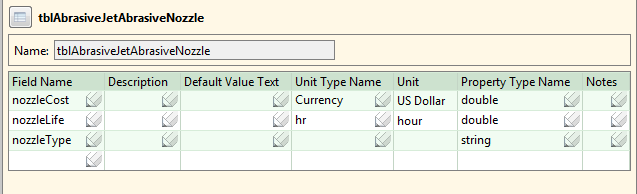
-
-
Select Save from the File menu, or click
 in the toolbar, to save your changes.
 -
Click the
 icon to the left of the table name in the editing pane. The column properties and column groups page appears in a new tab in the editing pane. Click Nozzle Type under displayed fields, and click the up arrow,
  , to move Nozzle Type to the top.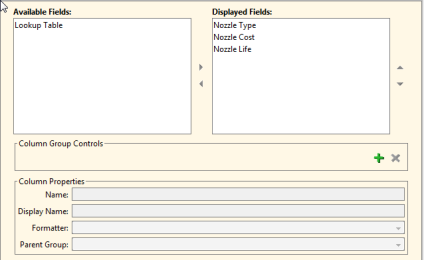


-
Select Save from the File menu, or click
in the toolbar, to save your changes. -
To incorporate your changes into the cost model, select Publish Cost Model and Digital Factory from the File menu, or click
 in the toolbar.
